Chrome 156 brings 14 updates to Googlebooks, including smoother fullscreen tab switching, improved downloads and refinements to AI Mode.
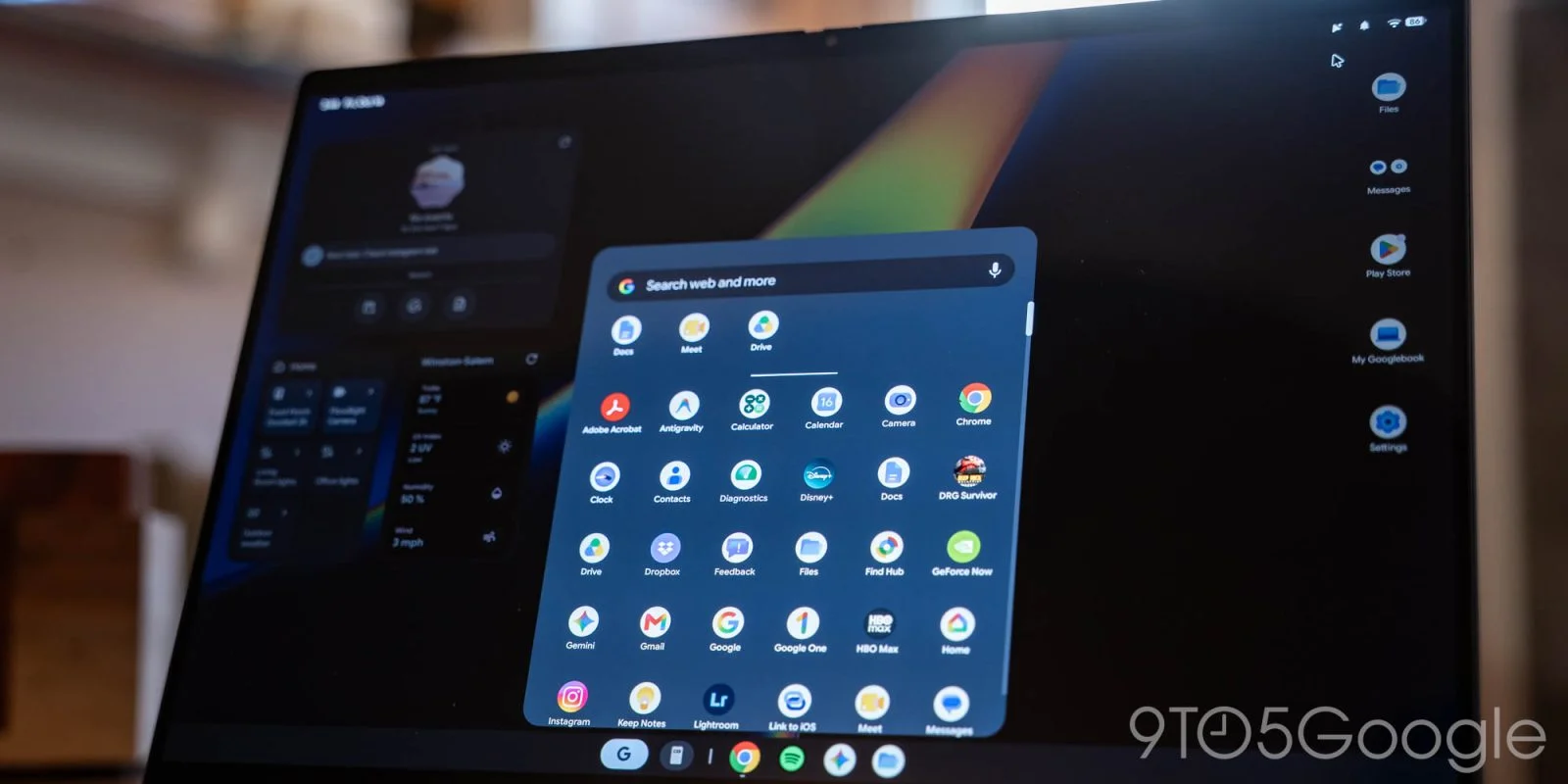
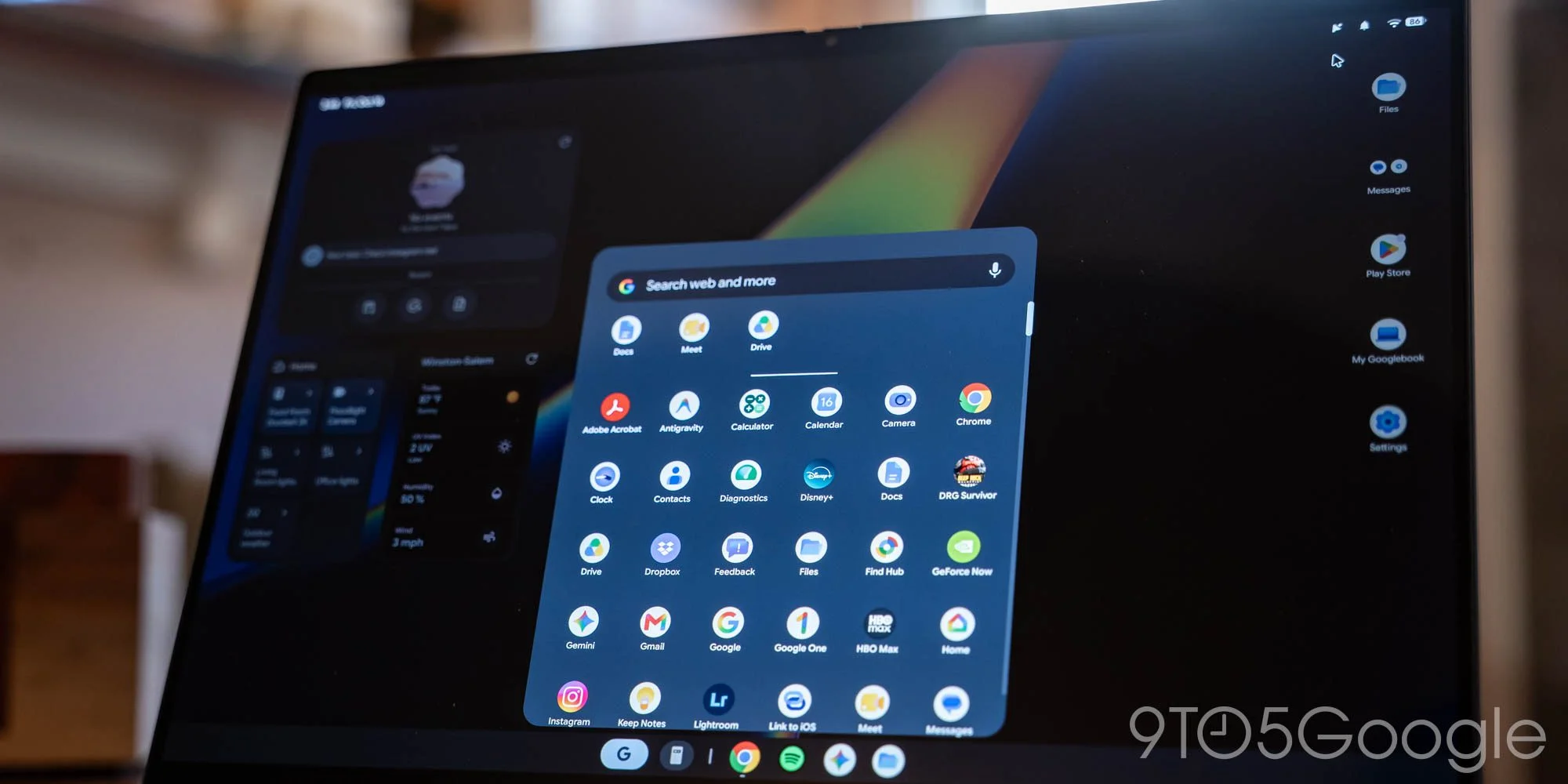
Chrome 156 for Googlebooks focuses on everyday friction: switching away from fullscreen apps, editing address bar queries and saving files all get practical fixes. Google is rolling out the update two weeks after Chrome 155. That short interval puts the emphasis on incremental changes users may encounter during routine browsing, rather than a major redesign. The details are specific, but the problems are familiar: a keyboard shortcut that stops working at the wrong moment, a file saved somewhere unexpected, or a browser control that behaves differently depending on what’s open.
Keyboard and address bar changes
The release adds one new feature: hovering over items in the address bar’s AI Mode menu now displays a tooltip. The other 13 changes are classified as improvements, including several useful keyboard refinements. That split suggests a maintenance-minded update: one visible addition, alongside a larger set of adjustments to existing behavior. The improvements may sound minor in isolation, but they target interactions people repeat throughout the day.
- Alt+Tab: Users can switch windows while a site or app is fullscreen with keyboard lock enabled. The shortcut now works as it does on ChromeOS, Mac and Windows, so there’s no need to press Esc first. That matters when an app has captured keyboard input: leaving fullscreen to change windows can otherwise become a two-step detour. A shortcut that follows familiar desktop behavior makes switching less dependent on remembering a browser-specific workaround.
- Alt+Shift+Enter: This shortcut opens a typed query in a background tab while leaving the current page in view. It gives people a way to park a search for later without losing their place in the page they’re reading. That’s a small but useful distinction for research and comparison tasks, where the query may be relevant but doesn’t need immediate attention.
- Up and down arrows: When address bar text wraps across multiple lines, the arrow keys move the cursor between lines. Suggestions are hidden during editing. The change makes the address bar behave more like a text field when a query is long enough to wrap, rather than mixing editing with the separate job of choosing a suggestion. Here’s the thing: predictable cursor movement matters most when users are already trying to correct or refine what they typed.
There’s no headline-grabbing feature in this set of keyboard changes. The value is in removing moments when the browser asks users to stop and work around it.
Sites, extensions and downloads
Chrome 156 also addresses specific site and app issues. Google Docs now supports copying large selections and tables, and Facebook Live streams receive a performance improvement. Stability fixes cover 1Password, other extensions, third-party apps and Chrome tabs. These fixes touch different parts of the browsing experience, but share a practical concern: browser features are often used alongside websites and software made by other companies.
Copying a large selection is different from copying a short passage; tables add structure that can be lost or mishandled when copied between tools. The update’s stated Docs improvement addresses that kind of task directly, though the release details don’t specify which limits or failure modes have changed. Facebook Live’s performance improvement is similarly concise. It points to an effort to improve streaming behavior, but doesn’t describe the size or conditions of the gain.
The stability fixes deserve attention because extensions and third-party apps are part of how many people use a browser, even when the browser itself remains unchanged. A failure in one of those pieces can interrupt a task that users don’t think of as “using Chrome.” (And this is the part most people overlook.) Compatibility work can be less visible than a new feature, yet it helps keep everyday workflows from breaking at the seams.
Site icons should now display correctly when users click the address bar from a webpage or search results. Chrome also clears stale icons when the URL bar is emptied. Elsewhere, the close button on third-party sign-in prompts now works correctly, and Incognito’s new tab page opens its context menu when users right-click links. These are narrow corrections, but they address the small visual and input details that shape whether an interface feels dependable.
For downloads, Chrome adds a “Save As” dialog so users can choose where files are stored. A fix for duplicate download names is intended to let those files open correctly in apps. Choosing a location at the point of saving can make file handling clearer, particularly for people who sort work into folders or need to retrieve a file later. Duplicate names are a less obvious problem: a download can appear successful but still cause confusion when an app tries to open the result. The release notes describe the fix’s intended outcome, but don’t explain how Chrome distinguishes or handles those files.
AI Mode refinements and rollout
The AI Mode animation now waits for its expansion to finish before playing, with more consistent timing. The menu for adding tabs and files to a search gains an “Add to your search” heading. The address bar also displays the “Ask anything” hint and blinking cursor correctly when users view their AI Mode history. These changes focus on feedback and clarity: users get a clearer label for adding material, and the interface’s motion and text are meant to appear in the right sequence.
Those details don’t change what AI Mode can do, based on the information provided. They do affect how legible its controls are and whether the interface appears to respond in an orderly way. That said, a tooltip and a clearer menu heading can only help if the underlying options are useful to the person searching. The release improves the presentation of the feature; it doesn’t, by itself, tell us how people are using it or whether these adjustments change their results.
Chrome 156 is widely rolling out for Googlebooks through the Play Store. The rollout follows the stable desktop and mobile release by a week; that version is not yet fully available for Android phones and tablets. The most tangible changes for Googlebook users are small workflow fixes that reduce interruptions across browsing, file handling and AI-assisted search.
Why the small fixes matter
This is more significant than it looks as a list of release notes, though the update’s individual changes are modest. A browser is used through repeated actions: switching windows, editing a query, copying content, saving a file, closing a prompt. When those actions behave inconsistently, the cost is usually a pause and a workaround rather than a dramatic failure. Fixing several such interruptions in one release can make ordinary use feel smoother without changing the browser’s basic shape.
If you’re working in this space, the pattern is familiar: product quality depends partly on how well a tool handles the edges of other people’s workflows. Chrome 156’s fixes span Google Docs, livestreaming, extensions, sign-in prompts and downloads, so the release reaches beyond the address bar. The available details don’t quantify performance gains or explain every underlying bug, which limits how much can be inferred about their impact. Still, the focus is clear. Less friction in the moments between tasks.
Discussion
Sign in to join the discussion.